Collaboration tools for students: choose tools for shared work
Choose collaboration tools for students by the task: write together, exchange ideas, manage work or create a shared product. Start with one or two tools your school already supports, practise a small task and agree roles and reply times before connecting with another class.
Last updated
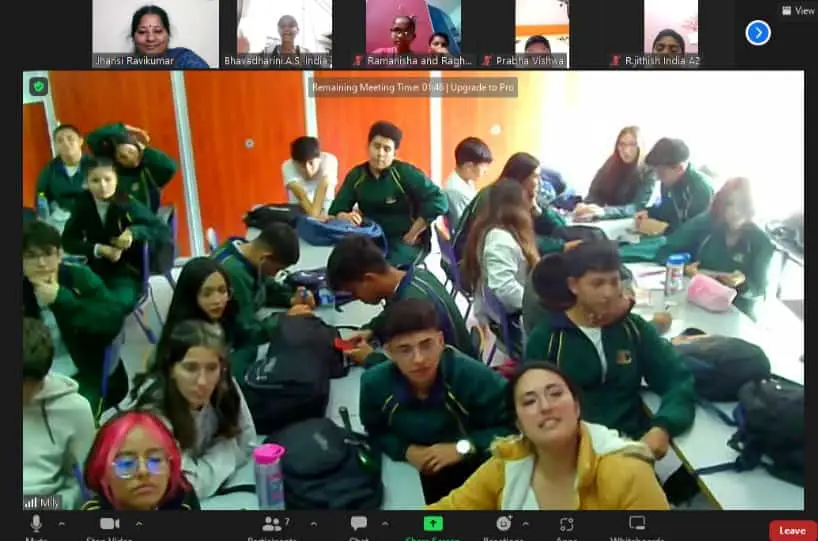
Working online can connect students within one classroom or with a class elsewhere. The tool helps them share work; the task gives them a reason to respond to one another. Begin with what students need to make or understand together.
Choose collaboration tools for students by task
- Write and comment together: a shared document or class notebook.
- Exchange ideas: a teacher-managed board or short recorded response.
- Organise work: a task list with an owner, a date and a next step.
- Make something together: a book, poster, animation or model.
Shared documents and notebooks
Google Docs supports shared editing and comments. If your school uses Microsoft 365, OneNote Class Notebook offers a shared Collaboration Space alongside student notebooks and a teacher-controlled content library. Choose a small task: each group adds evidence, asks a question and improves one paragraph after feedback.
For younger learners, pictures and recorded speech can make a task easier to explain. Book Creator supports books with text, images and audio; its real-time shared-book feature needs a paid plan. Seesaw supports drawings and voice recordings in student journals. Use the school's agreed access and sharing settings rather than assuming every feature is free or suitable for every child.
Video or recorded exchanges
Zoom and Google Meet are options for a live call when both schools can join. Teachers arrange the meeting and choose the controls they need, such as who can enter, use a microphone or share a screen.
For asynchronous work, students can prepare a short response and send it through a teacher-managed space. The separate Flip apps, formerly Flipgrid, are retired. If your school uses Teams for Education, Microsoft documents a Flip recording option there. A simple text or audio response is also enough.
Idea boards and task lists
Padlet can collect posts, images and links on a shared board. Set a clear question and agree how students will comment on one another's work. A shared task list can record responsibilities, deadlines and progress; it need not require another student account.
Trello is an example of a card-based task board, but Atlassian's current terms require users to be at least 16. For students under 16, keep the same planning method in a teacher-managed document or on paper.
If your class already uses Google Classroom, keep instructions and resource links there so students know where to look. Agree which space contains the final version when another class uses different tools.
Creative work
Canva Education can support shared posters and presentations. Scratch lets students remix a project and credit the original rather than edit one shared file together. Minecraft Education offers shared worlds, with account and multiplayer setup to check first. Choose a format that serves the learning question, not one that adds complexity.
Try one small shared task
- Practise with your own class before inviting another class. Try a short shared document or board task and check that everyone can take part.
- Choose a curriculum question where comparing ideas would help, such as local weather, a shared story or a community issue.
- Use one or two tools. Practise them yourself and give students a short demonstration or reference guide.
- Find one partner class with a compatible learning focus and timetable.
- Agree the stages, dates, final product and what you will assess with the partner teacher.
Give students a reason to work together
A shared task should need more than separate contributions placed side by side. In a climate investigation, one student can compare causes, another effects and another responses. Ask the group to discuss the evidence and build a conclusion together, rather than leaving all synthesis to one pupil.
You can also use a jigsaw: students investigate one part, explain it to teammates and ask a question about another part. Check that each learner can explain the group's answer, not only their own section.
Roles, check-ins and clear messages
Agree roles such as facilitator, recorder, researcher and presenter. Rotate them so students can practise different responsibilities. Younger children might use roles such as materials helper or encourager. Write the responsibilities on role cards or in the plan.
Build short check-ins into the plan. In a two-week project, for example, check progress on days 3, 7 and 10. Each student can say what they finished, what comes next and where they need help.
For partner classes, agree a response window that fits both school calendars. Asynchronous updates may work better than live meetings. Practise a greeting, a clear question and specific positive feedback before using the tools in a larger project.
Connect the task with another classroom
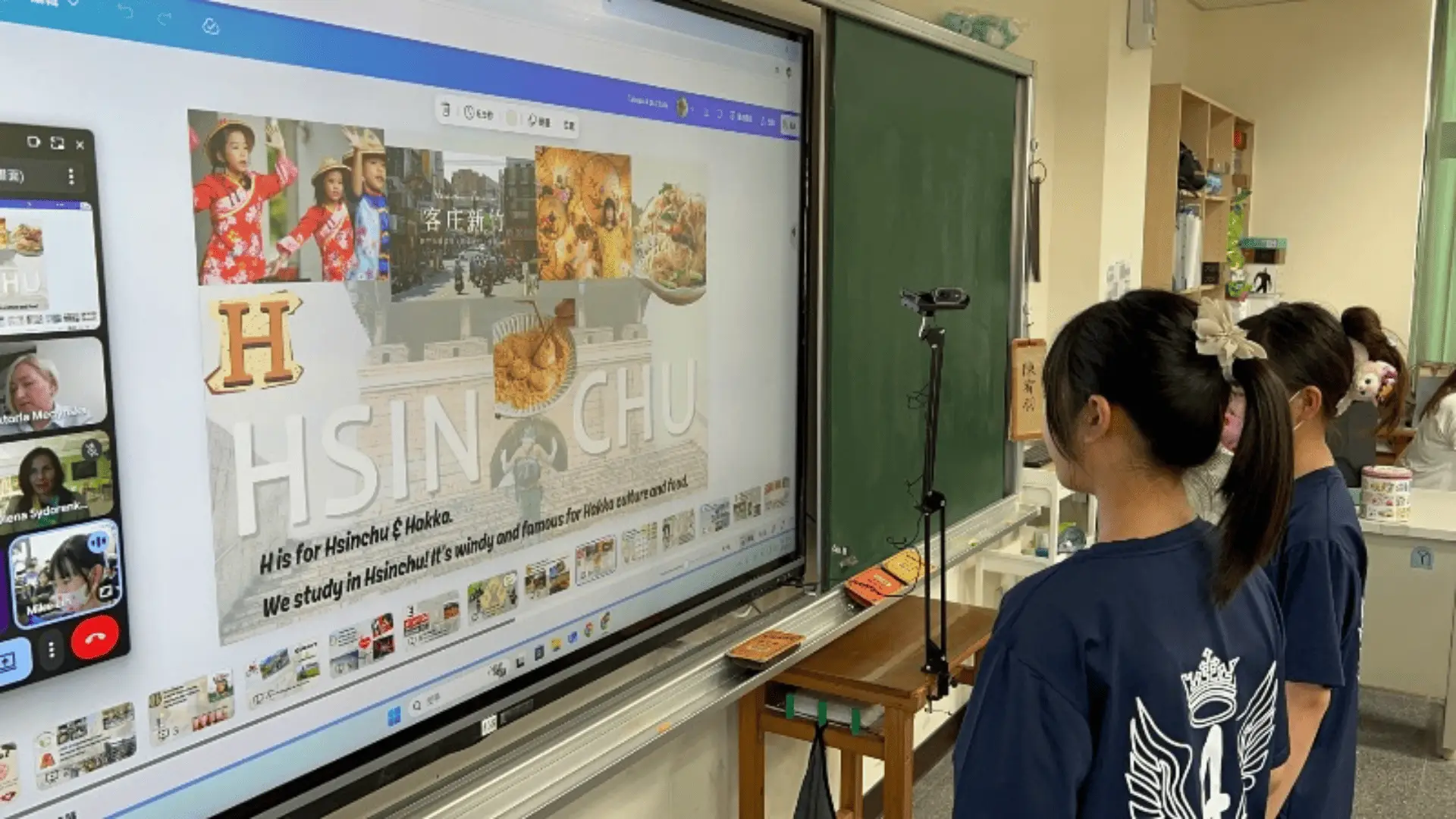
Start with one partner and a short sequence. A possible four-to-six-week exchange includes introductions, discussion of a shared topic, a joint product and reflection. COIL means teachers co-plan work that lets students respond to peers in another setting.
For younger classes, use a concrete, visual task: a book about school life, a teacher-selected picture of a public place or an artwork with contributions from both classes. Protect student privacy and use sharing permissions agreed by the teachers.
Timetable and curriculum
Check the actual time-zone offsets and daylight-saving dates before a live call. Do not assume that a California, London or New Zealand school day overlaps. Design the work so each class can post and reply during its own lessons; add a live call only if it helps.
For a call, prepare a few questions and clear student roles. A short show-and-tell, question exchange or comparison of findings gives the meeting a purpose.
Connect the exchange with a unit you already teach. Classes could compare ecosystems, collect measurements and graph results, discuss the same novel, compare accounts of a historical event, or observe weather and biodiversity in their local settings.
Help every student take part
Give each student a visible contribution and an opportunity to explain it. Revision history can support a discussion, but it does not capture every spoken idea or offline task. Use specific peer feedback about contributions rather than a general rating of classmates.
Have a backup: if a call fails, use a short written or audio response; if a shared file does not open, collect work through a teacher-managed route and combine it later. A paper version can keep the lesson moving when internet access is limited.
Provide a short troubleshooting guide with the relevant screenshots. Practise opening files, finding instructions and checking audio. For account or password problems, students should ask the teacher rather than sharing credentials.
Allow practice time and pair students who can help one another. A class tech helper can explain a simple step while the teacher supports access and inclusion. Offer text, speech, drawing or a teacher-scribed response when the tool is a barrier.
Use Class2Class for the partner connection
Class2Class connects teachers for international projects, with project chat and teacher messages. Teachers choose a shared task and any external tools together. Use the platform for the connection, then agree the tools and timetable with your partner teacher.
Frequently asked questions
Which collaboration tool should I start with?
Start with a tool your school already supports and a small task students can practise. A shared document, picture board or teacher-managed exchange may be enough.
Can students collaborate without being online together?
Yes. They can exchange a question, draft or short response during their own lessons. Agree when feedback is due around both school calendars.
Is Class2Class free, and does that include every other tool?
Class2Class is free for teachers and students. Other tools have their own plans and access rules; for example, Book Creator real-time collaboration requires a paid plan.
Explore classroom projects
Explore Class2Class project ideas and choose one to adapt for your class.